Database, Redis, and infrastructure setup
This page covers the data layer: the SQL database, Redis, and file storage. For container runtimes, reverse proxies, Transport Layer Security (TLS), Kubernetes, and ECS deployment, see the Production deployment guide.
Supported versions
| Component | Minimum | Recommended | Notes |
|---|---|---|---|
MySQL |
8.0 |
8.0.x (latest patch) |
Pin to |
PostgreSQL |
13 |
16 |
|
Redis |
3.2.6 |
7.x |
Redis Cluster and TLS supported through |
The AI service supports both MySQL and PostgreSQL equally. Pick whichever the operations team already runs.
Choosing a setup path
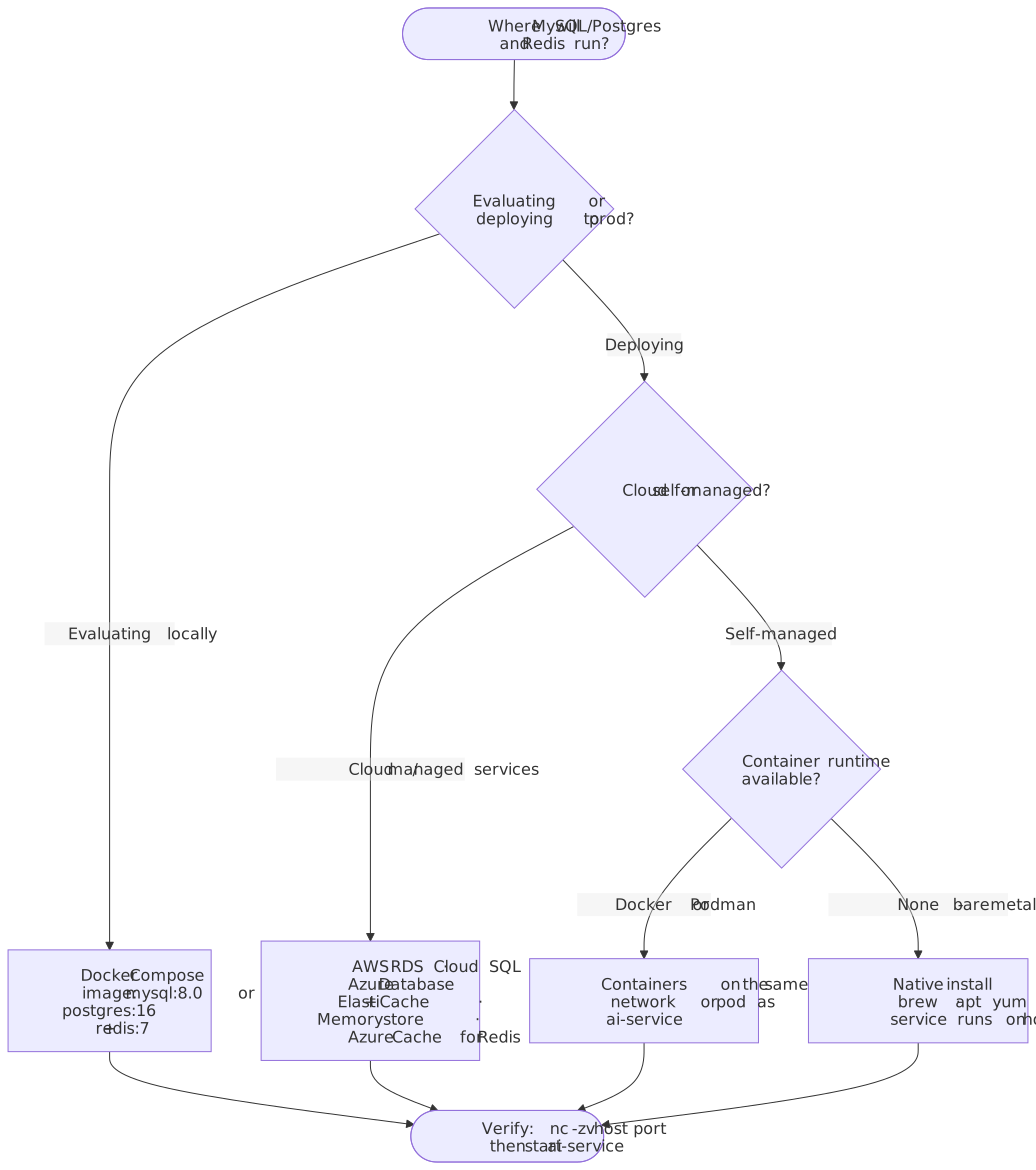
All paths produce the same end state: a running database the AI service can connect to.
| Path | MySQL | PostgreSQL |
|---|---|---|
Docker / Podman |
Yes |
Yes |
Docker Compose |
Yes |
Yes |
Native (macOS / Linux) |
Yes |
Yes |
Managed cloud (RDS, Cloud SQL, Azure) |
Yes |
Yes |
PostgreSQL schema prerequisite
The AI service expects a schema named cs-on-premises (with a hyphen). If that schema does not exist, the container crashes on first boot with:
error: schema "cs-on-premises" does not exist
Apply one of the following fixes before starting the AI service for the first time.
MySQL version pinning
Do not use mysql:8. That tag now floats to MySQL 8.4, which removes the default-authentication-plugin=mysql_native_password startup flag the AI service relies on. The container crashloops with:
[ERROR] [MY-000067] [Server] unknown variable 'default-authentication-plugin=mysql_native_password'.
[ERROR] [MY-010119] [Server] Aborting
Pin to mysql:8.0 in every manifest: docker run, Docker Compose, Kubernetes, Helm, ECS. Running MySQL 8.4 with workarounds (removing the flag and switching to caching_sha2_password) is not a supported configuration.
The same principle applies to PostgreSQL. Pin postgres:16 rather than postgres:latest.
|
Database user privileges
On first boot the AI service runs schema migrations and creates roughly 32 tables across the following namespaces: ai_assistant_*, environments*, security*, insights*, blob_storage*, and cs_migrations*.
The database user needs enough privilege to create, alter, and operate on these tables.
MySQL
CREATE USER 'ai_service'@'%' IDENTIFIED BY 'STRONG_PASSWORD';
GRANT SELECT, INSERT, UPDATE, DELETE,
      ALTER, CREATE, DROP, INDEX,
      TRIGGER, LOCK TABLES, REFERENCES
  ON ai_service.* TO 'ai_service'@'%';
FLUSH PRIVILEGES;
Development shortcut
GRANT ALL PRIVILEGES ON ai_service.* TO 'ai_service'@'%';|
Some builds report false-positive "Not enough permissions to access database" errors even with |
PostgreSQL
CREATE USER ai_service WITH PASSWORD 'STRONG_PASSWORD';
CREATE DATABASE ai_service OWNER ai_service;
\c ai_service
CREATE SCHEMA "cs-on-premises" AUTHORIZATION ai_service;
GRANT CREATE, USAGE ON SCHEMA "cs-on-premises" TO ai_service;
GRANT ALL ON ALL TABLES IN SCHEMA "cs-on-premises" TO ai_service;
GRANT ALL ON ALL SEQUENCES IN SCHEMA "cs-on-premises" TO ai_service;
ALTER DEFAULT PRIVILEGES IN SCHEMA "cs-on-premises"
  GRANT ALL ON TABLES TO ai_service;
ALTER DEFAULT PRIVILEGES IN SCHEMA "cs-on-premises"
  GRANT ALL ON SEQUENCES TO ai_service;
Development shortcut
GRANT ALL ON SCHEMA "cs-on-premises" TO ai_service;If DATABASE_SCHEMA=public was chosen, substitute public for "cs-on-premises" in each grant statement.
Database setup
Docker Compose (recommended for evaluation)
MySQL compose file
services:
  mysql:
    image: mysql:8.0
    environment:
      MYSQL_ROOT_PASSWORD: ROOT_PASSWORD
      MYSQL_DATABASE: ai_service
      MYSQL_USER: ai_service
      MYSQL_PASSWORD: STRONG_PASSWORD
    ports:
      - "3306:3306"
    volumes:
      - mysql_data:/var/lib/mysql
    healthcheck:
      test: ["CMD", "mysqladmin", "ping", "-h", "localhost"]
      interval: 10s
      timeout: 5s
      retries: 5

  redis:
    image: redis:7
    ports:
      - "6379:6379"
    healthcheck:
      test: ["CMD", "redis-cli", "ping"]
      interval: 10s
      timeout: 5s
      retries: 5

volumes:
  mysql_data:
PostgreSQL compose file
services:
  postgres:
    image: postgres:16
    environment:
      POSTGRES_DB: ai_service
      POSTGRES_USER: ai_service
      POSTGRES_PASSWORD: STRONG_PASSWORD
    ports:
      - "5432:5432"
    volumes:
      - pg_data:/var/lib/postgresql/data
    healthcheck:
      test: ["CMD-SHELL", "pg_isready -U ai_service -d ai_service"]
      interval: 10s
      timeout: 5s
      retries: 5

  redis:
    image: redis:7
    ports:
      - "6379:6379"
    healthcheck:
      test: ["CMD", "redis-cli", "ping"]
      interval: 10s
      timeout: 5s
      retries: 5

volumes:
  pg_data:
After docker compose up -d, create the PostgreSQL schema (if not using DATABASE_SCHEMA=public):
docker compose exec postgres psql -U ai_service -d ai_service \
  -c 'CREATE SCHEMA "cs-on-premises";'
Docker single container
MySQL
docker run -d \
  --name ai-mysql \
  -e MYSQL_ROOT_PASSWORD=ROOT_PASSWORD \
  -e MYSQL_DATABASE=ai_service \
  -e MYSQL_USER=ai_service \
  -e MYSQL_PASSWORD=STRONG_PASSWORD \
  -p 3306:3306 \
  -v ai_mysql_data:/var/lib/mysql \
  mysql:8.0
PostgreSQL
docker run -d \
  --name ai-postgres \
  -e POSTGRES_DB=ai_service \
  -e POSTGRES_USER=ai_service \
  -e POSTGRES_PASSWORD=STRONG_PASSWORD \
  -p 5432:5432 \
  -v ai_pg_data:/var/lib/postgresql/data \
  postgres:16
Then create the schema:
docker exec -i ai-postgres psql -U ai_service -d ai_service \
  -c 'CREATE SCHEMA "cs-on-premises";'
For Podman, substitute podman for docker throughout. On rootless Podman, use named volumes rather than bind-mounted host paths to avoid SELinux and UID mapping issues.
|
Native install (macOS)
MySQL and PostgreSQL on macOS
MySQL:
brew install mysql
brew services start mysql
mysql_secure_installation
mysql -u root -p <<'SQL'
CREATE DATABASE ai_service;
CREATE USER 'ai_service'@'%' IDENTIFIED BY 'STRONG_PASSWORD';
GRANT SELECT, INSERT, UPDATE, DELETE, ALTER, CREATE, DROP,
      INDEX, TRIGGER, LOCK TABLES, REFERENCES
  ON ai_service.* TO 'ai_service'@'%';
FLUSH PRIVILEGES;
SQL
PostgreSQL:
brew install postgresql@16
brew services start postgresql@16
createuser -P ai_service
createdb -O ai_service ai_service
psql -d ai_service -c 'CREATE SCHEMA "cs-on-premises" AUTHORIZATION ai_service;'
Verify all services are running:
brew services listNative install (Linux)
MySQL and PostgreSQL on Debian/Ubuntu
MySQL:
sudo apt update
sudo apt install -y mysql-server
sudo systemctl enable --now mysql
sudo mysql_secure_installation
sudo mysql <<'SQL'
CREATE DATABASE ai_service;
CREATE USER 'ai_service'@'%' IDENTIFIED BY 'STRONG_PASSWORD';
GRANT SELECT, INSERT, UPDATE, DELETE, ALTER, CREATE, DROP,
      INDEX, TRIGGER, LOCK TABLES, REFERENCES
  ON ai_service.* TO 'ai_service'@'%';
FLUSH PRIVILEGES;
SQL
To allow remote connections, edit /etc/mysql/mysql.conf.d/mysqld.cnf, set bind-address = 0.0.0.0, and restart with sudo systemctl restart mysql.
PostgreSQL:
sudo apt update
sudo apt install -y postgresql postgresql-contrib
sudo systemctl enable --now postgresql
sudo -u postgres psql <<'SQL'
CREATE USER ai_service WITH PASSWORD 'STRONG_PASSWORD';
CREATE DATABASE ai_service OWNER ai_service;
SQL
sudo -u postgres psql -d ai_service \
  -c 'CREATE SCHEMA "cs-on-premises" AUTHORIZATION ai_service;'
To allow remote connections, edit /etc/postgresql/16/main/postgresql.conf (listen_addresses = '*') and add to /etc/postgresql/16/main/pg_hba.conf:
host ai_service ai_service 0.0.0.0/0 scram-sha-256
Restart with sudo systemctl restart postgresql.
Managed cloud
The AI service handles schema migration automatically. The pre-steps are:
-
Provision the database instance (RDS, Cloud SQL, or Azure Database).
-
Create the database (
ai_service). -
Create a dedicated user with the privileges documented in Database user privileges.
-
PostgreSQL only: create the
cs-on-premisesschema or setDATABASE_SCHEMA=public. -
Open the security group or firewall for the AI service on port
3306(MySQL) or5432(PostgreSQL).
| Provider | MySQL | PostgreSQL | Redis |
|---|---|---|---|
AWS |
RDS for MySQL |
RDS for PostgreSQL |
ElastiCache for Redis |
GCP |
Cloud SQL (MySQL) |
Cloud SQL (PostgreSQL) |
Memorystore for Redis |
Azure |
Azure Database for MySQL |
Azure Database for PostgreSQL |
Azure Cache for Redis |
For production, enable Multi-AZ (or the equivalent zonal redundancy) and automated backups.
Connecting to a host-local database from Docker
When the AI service runs in Docker but the database or Redis runs natively on the host, the container must resolve the host’s IP address.
Docker Desktop (macOS, Windows) and Podman 4+ inject host.docker.internal automatically.
Native Linux Docker does not. Add host-gateway explicitly:
services:
  ai-service:
    image: registry.containers.tiny.cloud/ai-service:latest
    extra_hosts:
      - "host.docker.internal:host-gateway"
    environment:
      DATABASE_HOST: host.docker.internal
      REDIS_HOST: host.docker.internal
Or with docker run:
docker run --add-host=host.docker.internal:host-gateway ...Redis
Every AI service instance must reach Redis. Redis holds session coordination, Server-Sent Events (SSE) delivery, and rate-limiting state. A temporary Redis outage degrades streaming but does not destroy persistent data.
Setup
Redis is typically included in the Docker Compose file alongside the database (see the compose examples above). For standalone setup:
docker run -d --name ai-redis -p 6379:6379 -v ai_redis_data:/data redis:7macOS / Linux native install
macOS:
brew install redis
brew services start redis
Linux (Debian/Ubuntu):
sudo apt install -y redis-server
sudo systemctl enable --now redis-server
Connection variables
| Variable | Required | Description |
|---|---|---|
|
Yes |
Hostname |
|
No |
Default |
|
No |
Password |
|
No |
Username (Redis 6+ ACL) |
|
No |
Database number (default |
|
No |
Set to |
TLS
| Variable | Description |
|---|---|
|
|
|
Path to CA certificate |
|
Path to client key |
|
Path to client certificate |
Cluster
| Variable | Description |
|---|---|
|
Comma-separated |
|
Set to |
Cluster examples
# Standard cluster
REDIS_CLUSTER_NODES="redis1.example.com:7000,redis2.example.com:7001,redis3.example.com:7002"

# Cluster with per-node passwords
REDIS_CLUSTER_NODES="redis1.example.com:7000:pass1,redis2.example.com:7001:pass2"

# IPv6 cluster
REDIS_IP_FAMILY=6
REDIS_CLUSTER_NODES="[::1]:7000,[::1]:7001,[::1]:7002"
In production, always set REDIS_PASSWORD or use a managed Redis instance with authentication enabled.
|
File storage
Separate from the SQL database, the AI service persists user file uploads (attachments, images). The storage back end is selected by the STORAGE_DRIVER environment variable.
| Driver | When to use | Notes |
|---|---|---|
|
Demos and smallest deployments |
Stores files as SQL blobs. Hard cap around 4 GB total. No extra configuration required. |
|
Single-instance with a persistent volume |
Requires a writable mounted volume. See Filesystem. |
|
Production on AWS, or S3-compatible (MinIO, Wasabi) |
Use a same-region bucket. |
|
Production on Azure |
Azure Blob Storage. |
S3
STORAGE_DRIVER=s3
STORAGE_REGION=us-east-1
STORAGE_ACCESS_KEY_ID=ACCESS_KEY
STORAGE_SECRET_ACCESS_KEY=SECRET_KEY
STORAGE_BUCKET=BUCKET_NAME
STORAGE_ENDPOINT=https://custom-s3-endpoint   # optional, for S3-compatible
The correct variable names are STORAGE_BUCKET and STORAGE_REGION, not STORAGE_S3_BUCKET or STORAGE_S3_REGION.
|
Azure Blob
STORAGE_DRIVER=azure
STORAGE_ACCOUNT_NAME=ACCOUNT_NAME
STORAGE_ACCOUNT_KEY=ACCOUNT_KEY
STORAGE_CONTAINER=CONTAINER_NAME
STORAGE_ENDPOINT=https://custom-endpoint # optionalVerification
MySQL
mysql --host=DB_HOST --user=ai_service --password=STRONG_PASSWORD \
  ai_service --port=3306 -e "SELECT 1"
Expected: a table with 1 in a single column.
PostgreSQL
psql -h DB_HOST -U ai_service -d ai_service -c "SELECT 1"Expected: ?column? returning 1.
AI service migration
After starting the AI service, confirm it has connected and run migrations:
docker logs ai-service 2>&1 | grep -i 'migrat\|schema\|database'Expected output (paraphrased):
Connecting to database (driver=postgres host=...)
Running migrations on schema "cs-on-premises"
Migrations complete: 32 tables ready
Server is listening on port 8000.
If schema "cs-on-premises" does not exist appears, return to PostgreSQL schema prerequisite. If unknown variable 'default-authentication-plugin' appears, return to MySQL version pinning.
To list the tables created by migration:
SELECT table_name FROM information_schema.tables
 WHERE table_schema = 'cs-on-premises'
ORDER BY table_name;SHOW TABLES IN ai_service;Tables prefixed ai_assistant_, environments, security, insights, blob_storage, and cs_migrations should appear.